Notifications
Understanding SoftSDC notification system and alert levels
Overview
Application notifications support different levels of information, allowing you to stay informed about various system events and actions. These notifications range from critical alerts about security issues to informational messages about routine operations.
The notification system is designed to be non-intrusive while ensuring you receive important updates about the application's status.
Notification Levels
Different notification levels are distinguished by color coding and icons, making it easy to identify the urgency and type of each message at a glance.
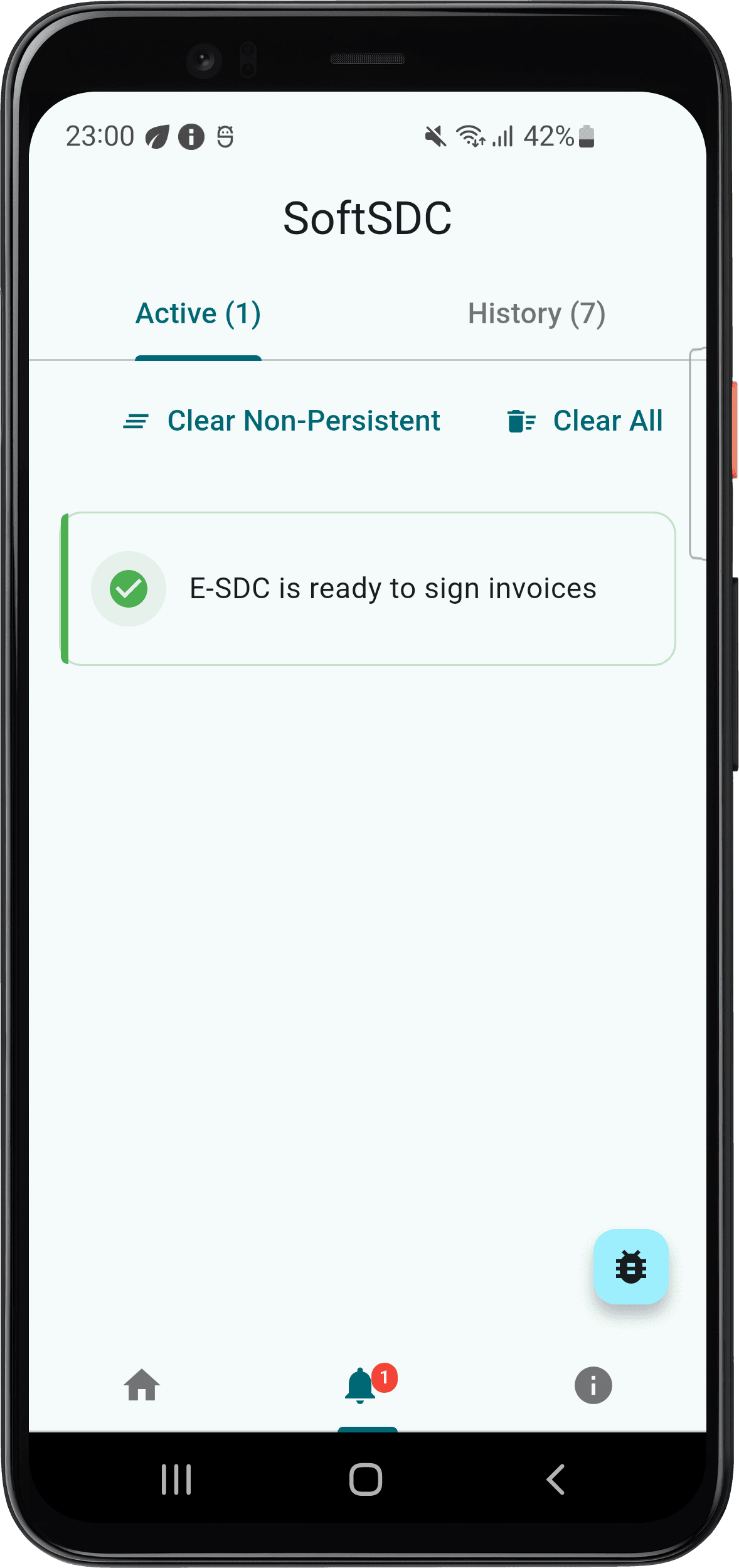
Active notifications are represented by a list of notifications that are currently displayed.
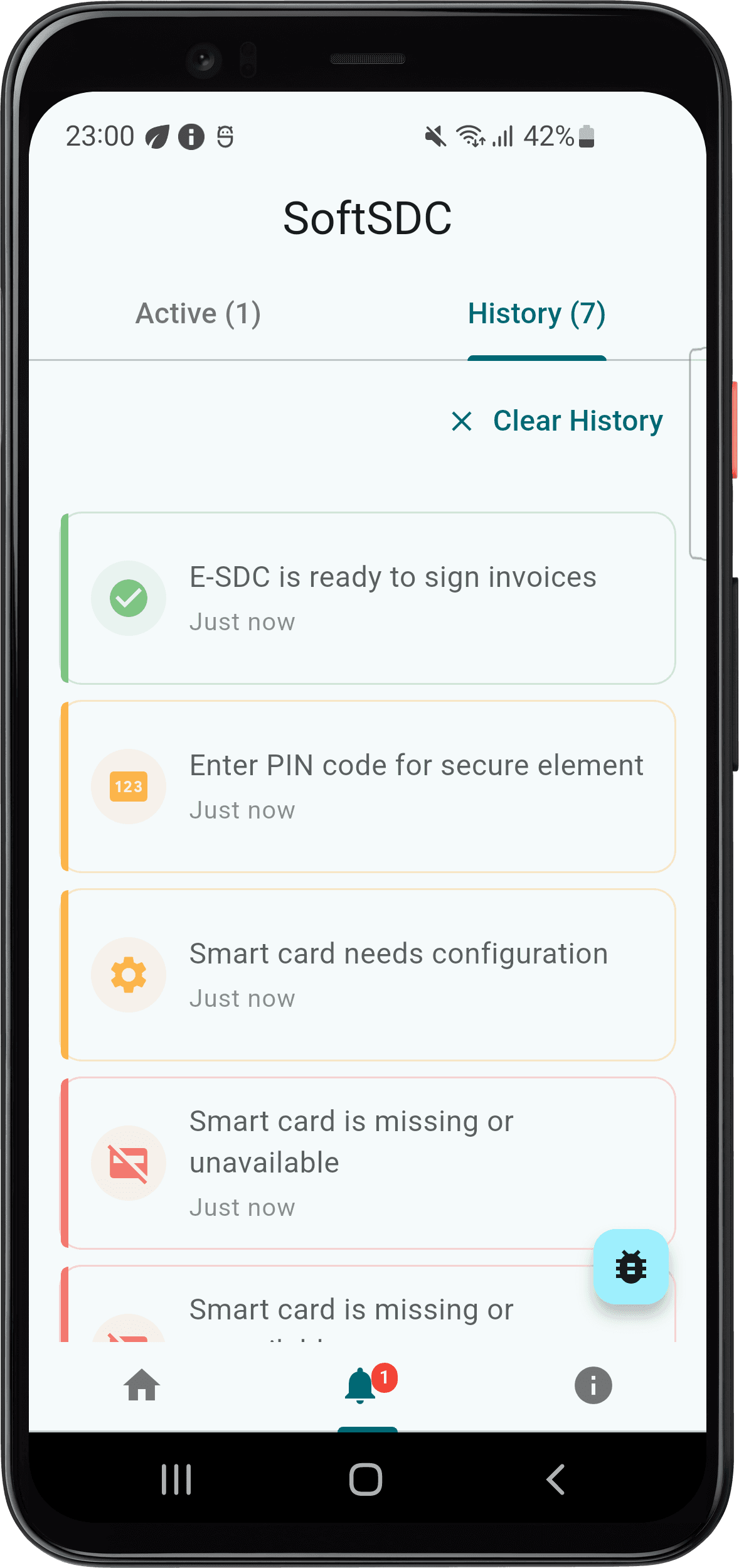
Notification history is represented by a list of notifications that have been displayed in the past.
Color Coding System
The colour-coding system is designed to provide immediate visual cues about the importance and nature of each notification:
Red Icons
Critical Alerts - Require immediate attention

Examples:
- Hardware failures
- Connectivity issues that affect system functionality
- Smart card errors
- License expiration
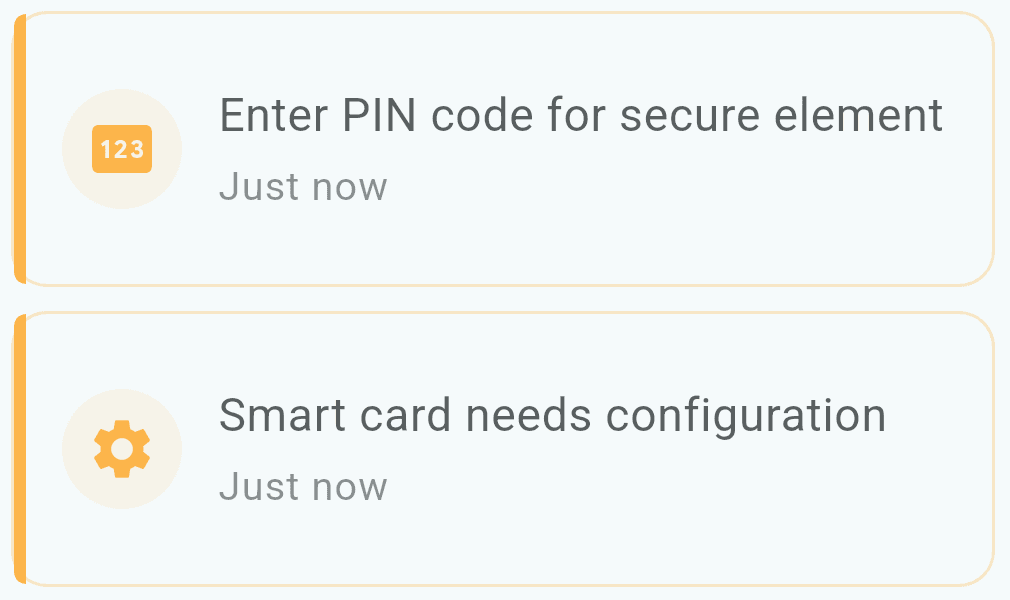
Yellow/Orange Icons
Warnings - Potential issues that may impact performance
Examples:
- Audit approaching required threshold
- Storage space running low
- Network connectivity intermittent
- Certificate expiring soon
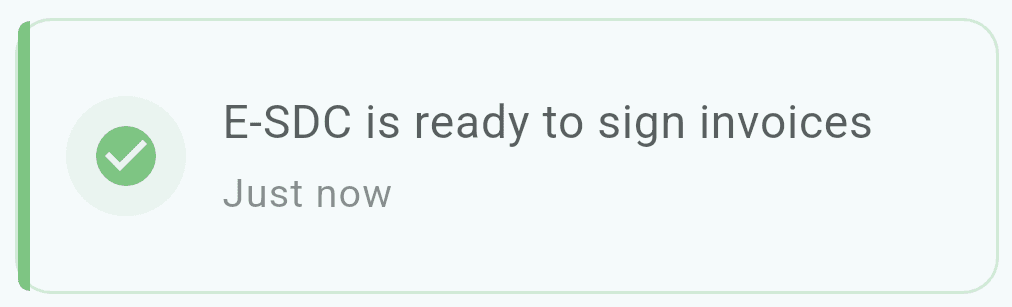
Green Icons
Success Confirmations - Successful operations
Examples:
- Invoice successfully fiscalized
- Services restarted successfully
- PIN accepted
- Configuration updated
Blue Icons
Informational Messages - Normal system activities
Examples:
- Service status updates
- Routine synchronization completed
- Background processes running
- System initialized
Platform-Specific Notifications
Desktop Notifications
On Windows, SoftSDC uses:
- In-app notification center
- System tray notifications
- Toast notifications for important alerts
Mobile Notifications
On Android, SoftSDC uses:
- In-app notification panel
- Platform-specific push notifications
- Badge counters for unread notifications
Make sure you have platform notifications enabled in your device settings to receive important alerts even when the app is not in the foreground.
Common Notification Types
Operational Notifications
- Service started/stopped
- API endpoint available/unavailable
- Background processes status
Security Notifications
- PIN required
- Card inserted/removed
- Authentication successful/failed
- Secure element status changes
Compliance Notifications
- Audit required
- Time synchronization issues
- Configuration updates available
- Command received from tax authority
Error Notifications
- Communication failures
- Processing errors
- Hardware issues
- License problems
This comprehensive notification system ensures you can quickly assess the status of your SoftSDC implementation at a glance and prioritize your responses accordingly.