Getting Started
Quick start guide for using SoftSDC
Prerequisites
Before starting, ensure you have:
- Installed SoftSDC on your device
- A smart card reader connected
- Your smart card with Secure Element
- Your PIN code ready
Starting the Application
Launch SoftSDC
Click on the Desktop shortcut created during installation, or find SoftSDC in your applications menu.
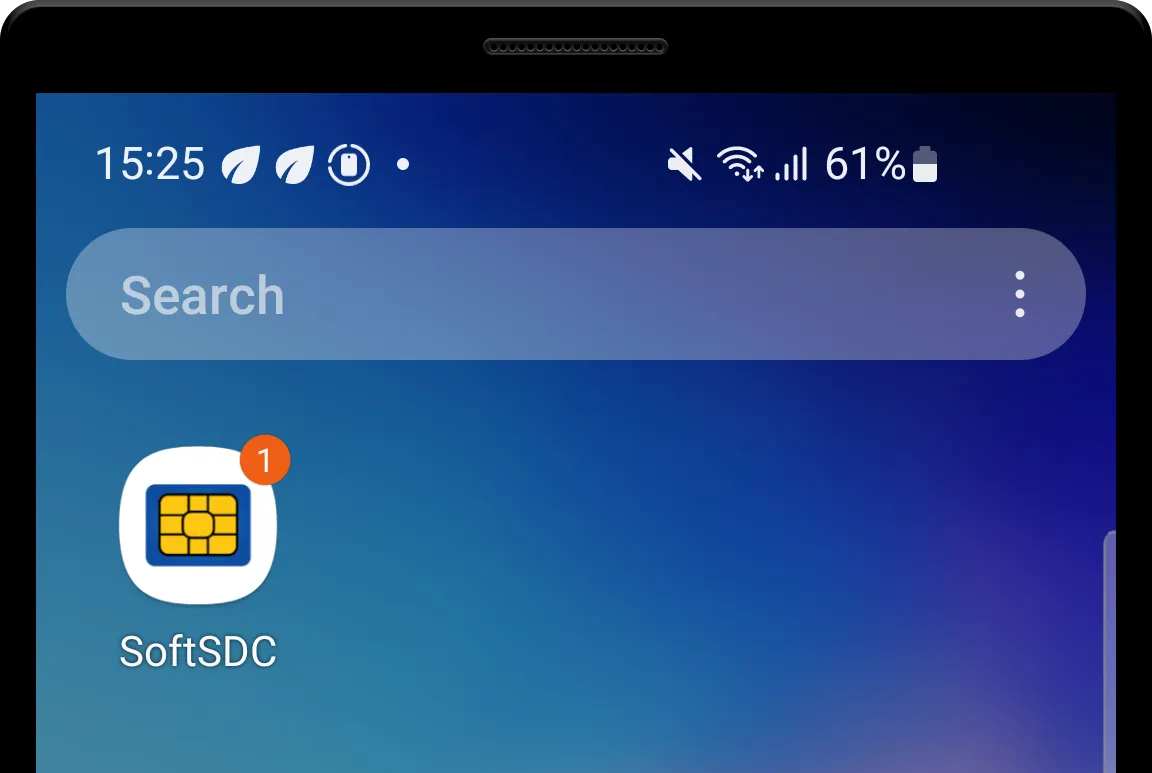
The services will start automatically when you launch the app.
Select License
On first launch, you'll need to:
- Start with a 7-day trial, or
- Enter your purchased activation code
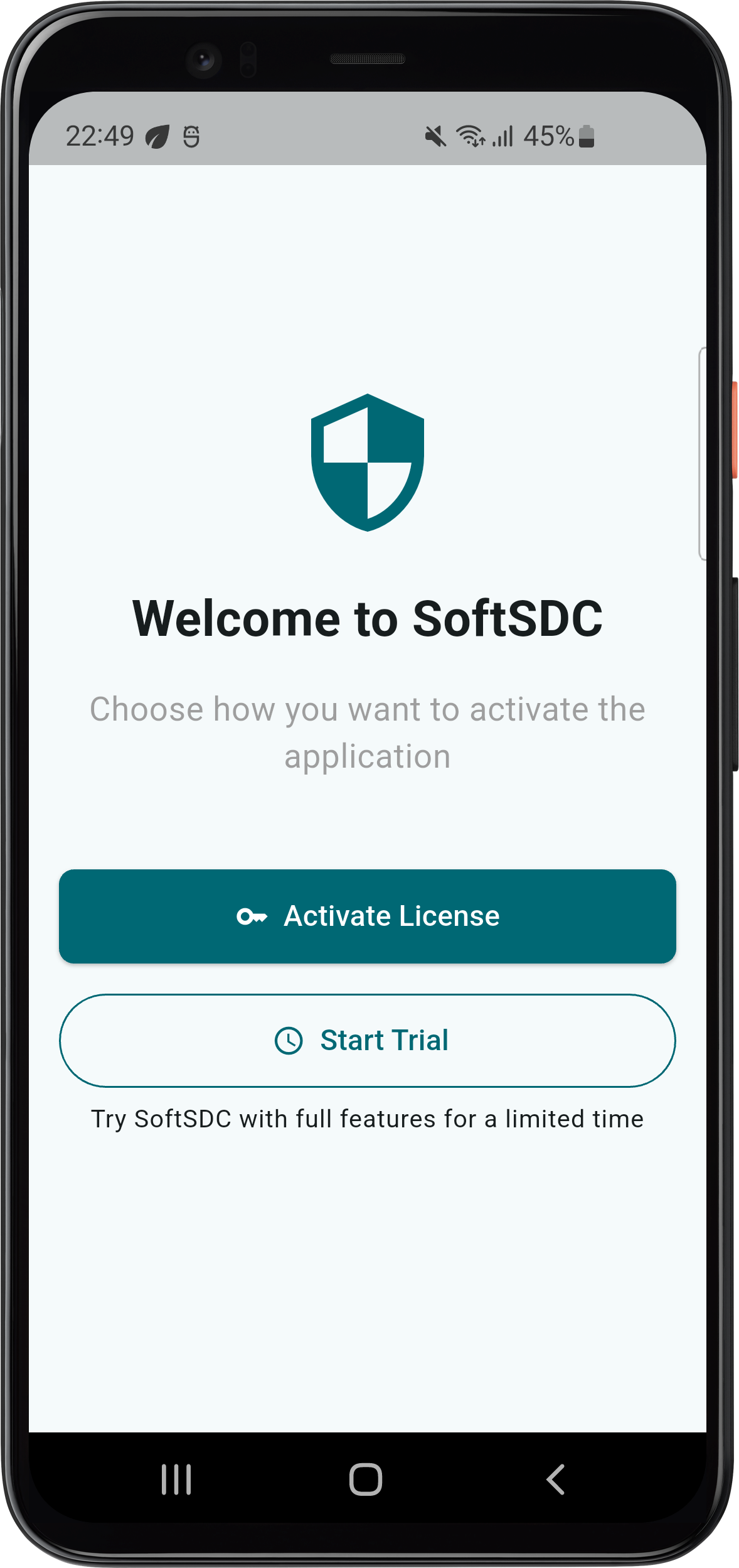
The trial begins automatically and provides full access to all features.
Connect Card Reader
Insert your smart card reader into a USB port. When connecting for the first time:
- A permission dialog will appear
- Select "Ok" or "Grant Permission"
- The system will detect and configure the reader
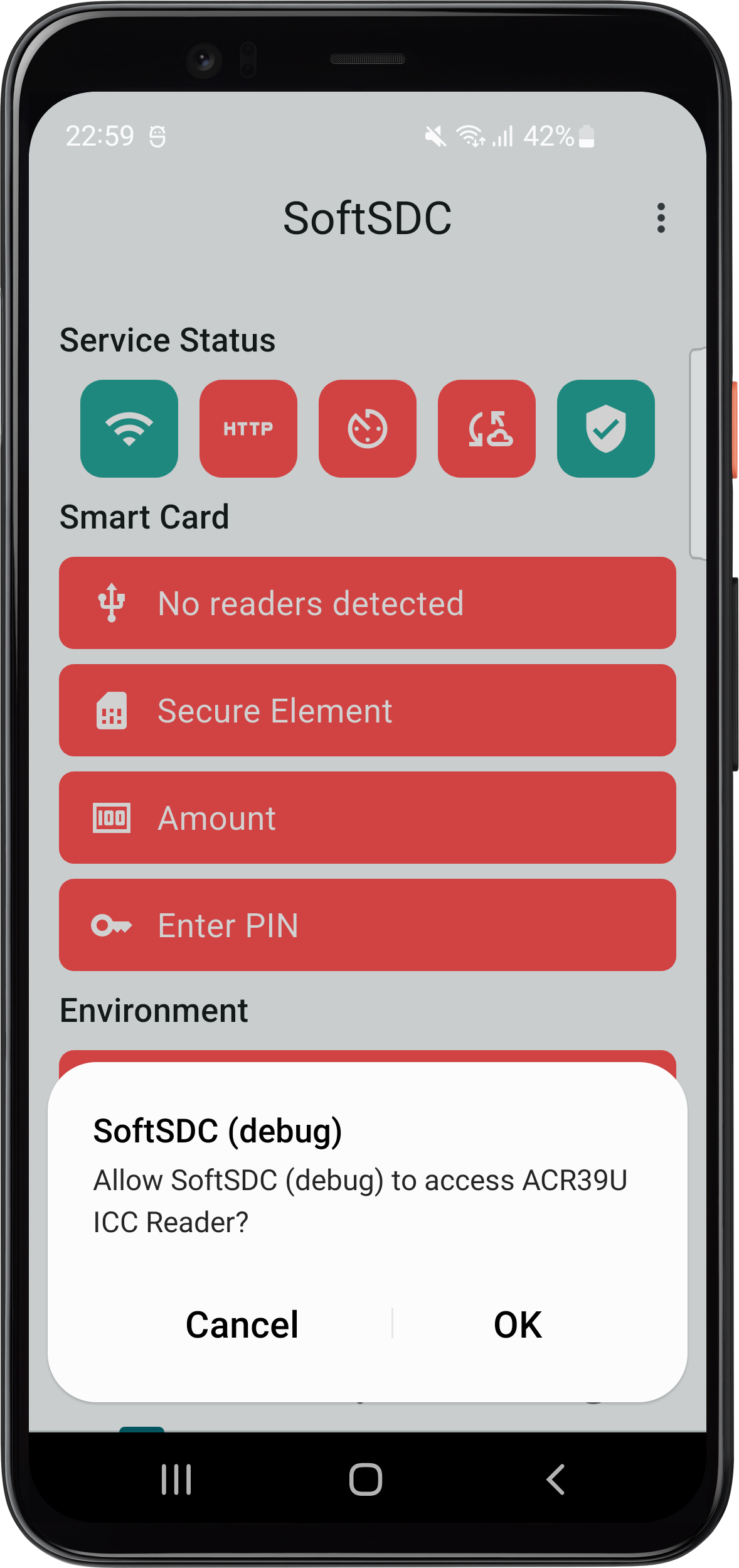
The service will start automatically on device restart - you don't need to login each time. The API will be available once you insert the smart card and provide your PIN.
Insert Smart Card
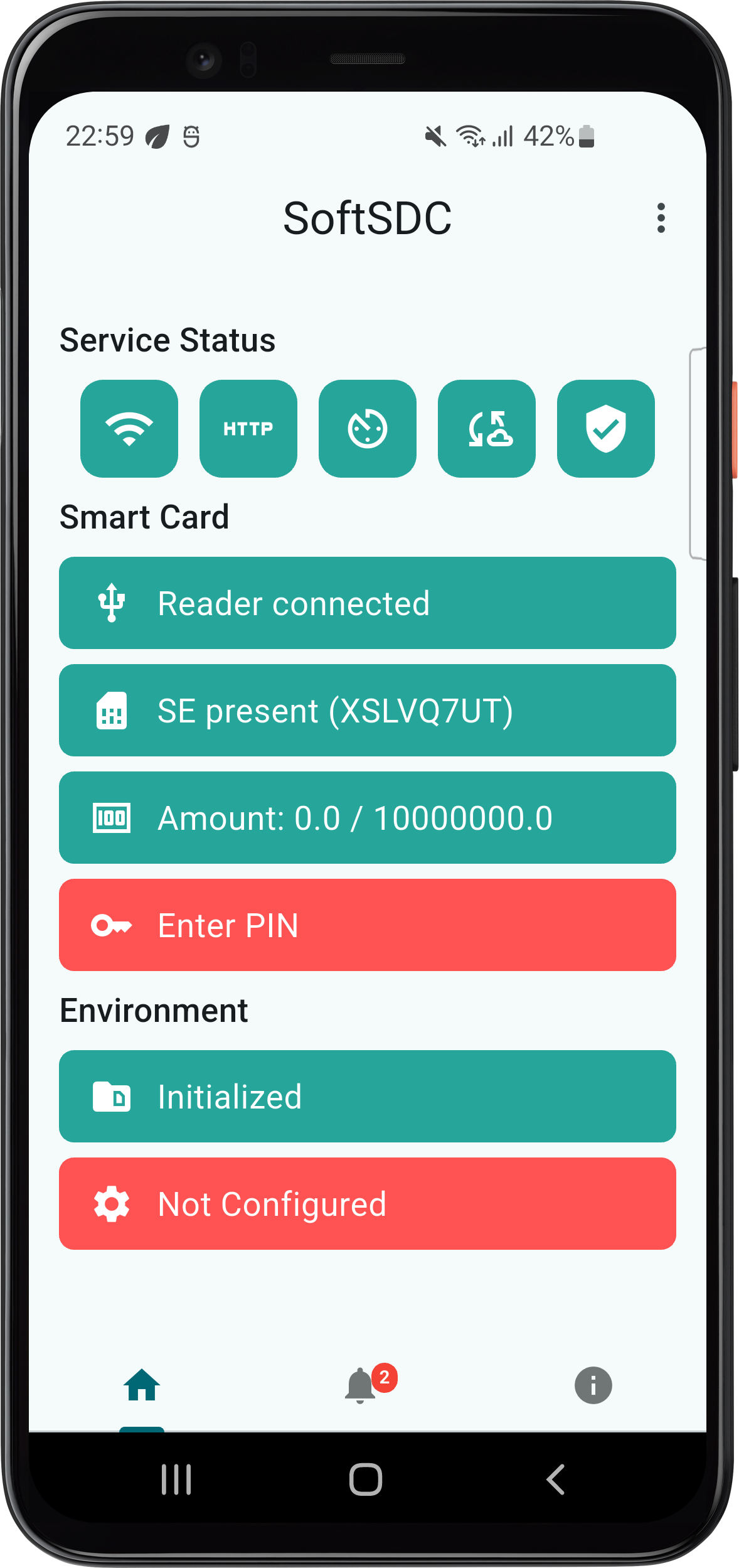
Insert your smart card into the reader. The application will:
- Detect the card automatically
- Display card information on the home screen
- Show certificate validity and status
Enter PIN
To activate the smart card:
- Navigate to Actions → Enter PIN
- Enter your 4-digit PIN code
- The PIN is verified automatically after the last digit
PIN Attempts Limited
You have maximum 5 attempts to enter the correct PIN. After 5 failed attempts, your card will be locked and unusable.
The PIN is saved in temporary memory for your session and cleared when:
- The application is closed
- The device is restarted
- After a period of inactivity
Understanding the Home Screen
Service Indicators
The home screen displays real-time status of system components:
- Green: Service running correctly
- Yellow: Warning or transitional state
- Red: Critical issue requiring attention
Monitor these indicators:
- API Service Status
- Security Element Connectivity
- Network Availability
- Smart Card Status
Smart Card Information
View critical card details:
- Certificate validity period
- Card serial number
- Remaining signature capacity
- Total unconfirmed receipts
First Test Invoice
To verify your setup is working:
- Go to Actions → Create test invoice
- The system generates a sample invoice automatically
- Review the fiscal process
- Check Preview last invoice to see the result
This confirms:
- Smart card is functioning
- PIN is correct
- System is properly configured
- Connection to tax authority (if online)
Running in Background
SoftSDC includes a background service that:
- Maintains API availability
- Processes invoices continuously
- Syncs with tax authorities
- Handles POS integration requests
The service runs automatically even when the main window is minimized.
Daily Operations
Regular Tasks
Start of Day:
- Verify smart card is inserted
- Enter PIN if required
- Check service indicators are green
- Confirm internet connectivity
During Operations:
- Monitor unconfirmed receipts counter
- Watch for system notifications
- Ensure adequate storage space
- Keep device powered (mobile devices)
End of Day:
- Review total transactions
- Verify synchronization status
- Check for any warnings or errors
- Ensure all receipts are confirmed
Important Reminders
Critical Operating Rules
- Never change system date/time while S-SDC is running
- Always use "Set time automatically" option
- Never remove smart card during invoice processing
- Always enter PIN after service restart
- Never share your PIN with anyone
Next Steps
Now that you're set up:
- Configure POS Integration: Set up your POS to communicate with SoftSDC API
- Test API Endpoints: Verify connectivity with test requests
- Review Settings: Customize refresh rates and logging options
- Plan for Audits: Understand local and remote audit procedures
Getting Help
If you encounter issues:
- Check notification messages for specific errors
- Review the Troubleshooting Guide
- Consult the FAQ
- Contact support with:
- Error messages
- System information from About screen
- Steps to reproduce the issue